
Use the WordPress Browser Extension for Cleaner Site Reviews
The WordPress admin bar can take up part of the viewport on every front-end page you inspect while logged in. That makes it harder to review the page as a visitor sees it, and it can create misleading visual artifacts around sticky headers and scroll-driven effects. The official WordPress Browser Extension removes that tradeoff: you can hide the bar without losing its useful shortcuts.
Available for Google Chrome and other Chromium-based browsers through the Chrome Web Store, the extension is also available for Safari on macOS through the Mac App Store. It’s an open source extension that also recognizes WordPress sites, keeps a launcher for sites you use, and supplies browser-level inspection tools.
Install from the Chrome Web Store Install from the Mac App StoreHide the admin bar without giving up navigation
WordPress normally places the admin bar across the top of each page for signed-in users. It provides direct access to the dashboard, editor, and profile, but plugins can also add enough controls that the bar becomes difficult to use. Disabling it in profile settings removes both the visual obstruction and the shortcuts.
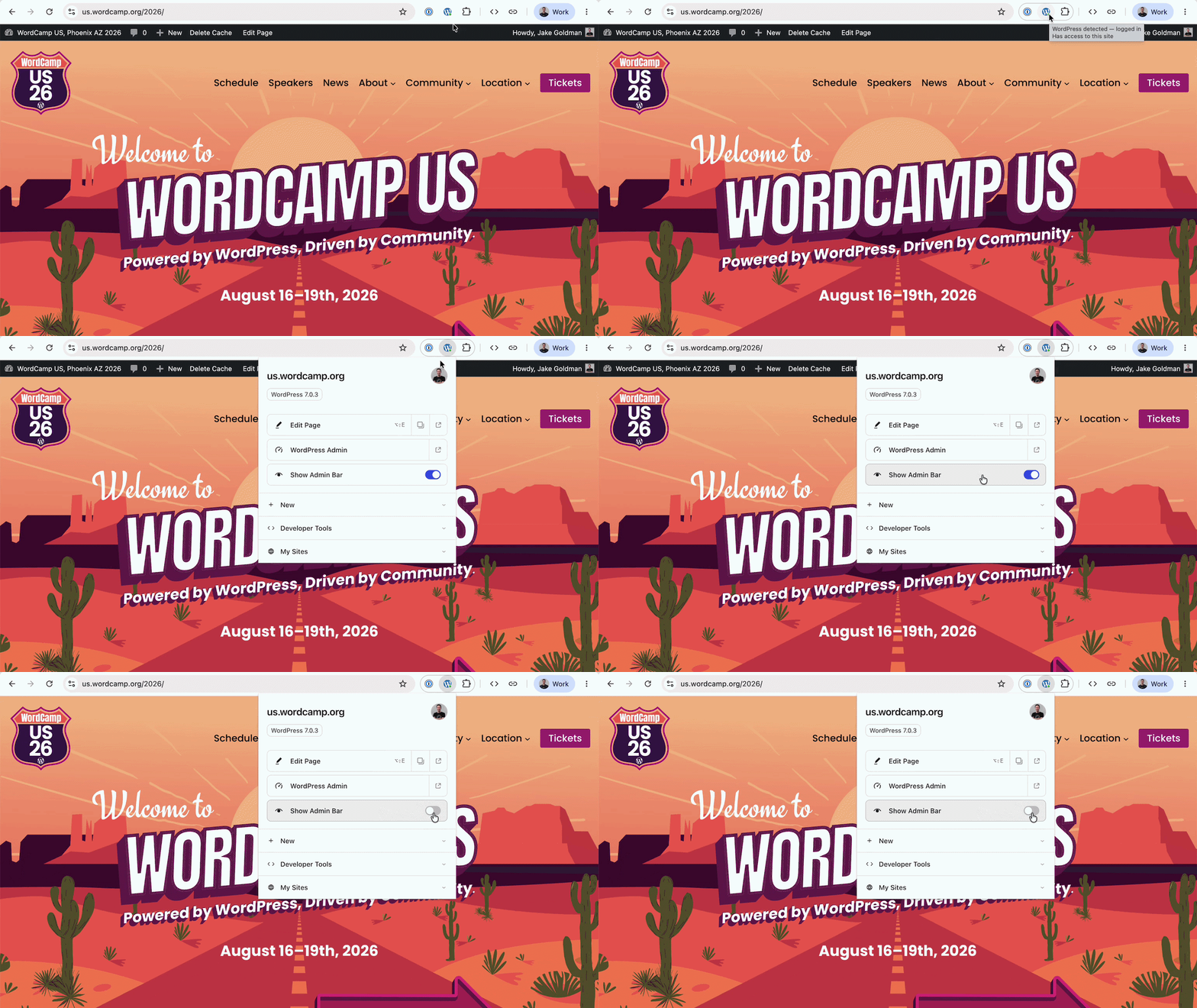
The extension hides the admin bar on selected sites, or on all sites by default. Its toolbar menu preserves the most frequently used shortcuts, and you can restore the complete bar with two clicks rather than changing a dashboard setting.
Open the right editor from the page you are viewing
The toolbar icon indicates whether the current site uses WordPress and whether you are signed in. On a site you manage, opening the extension gives you a path to the dashboard or directly to the editor for the resource currently on screen.
That direct editing route works for posts, pages, taxonomies, and templates. It also handles template-backed pages on block themes by opening the relevant template in the Site Editor. The extension stores a launcher locally for the sites where you sign in, so you can open those sites even while browsing elsewhere.
Use browser-level review and debugging tools
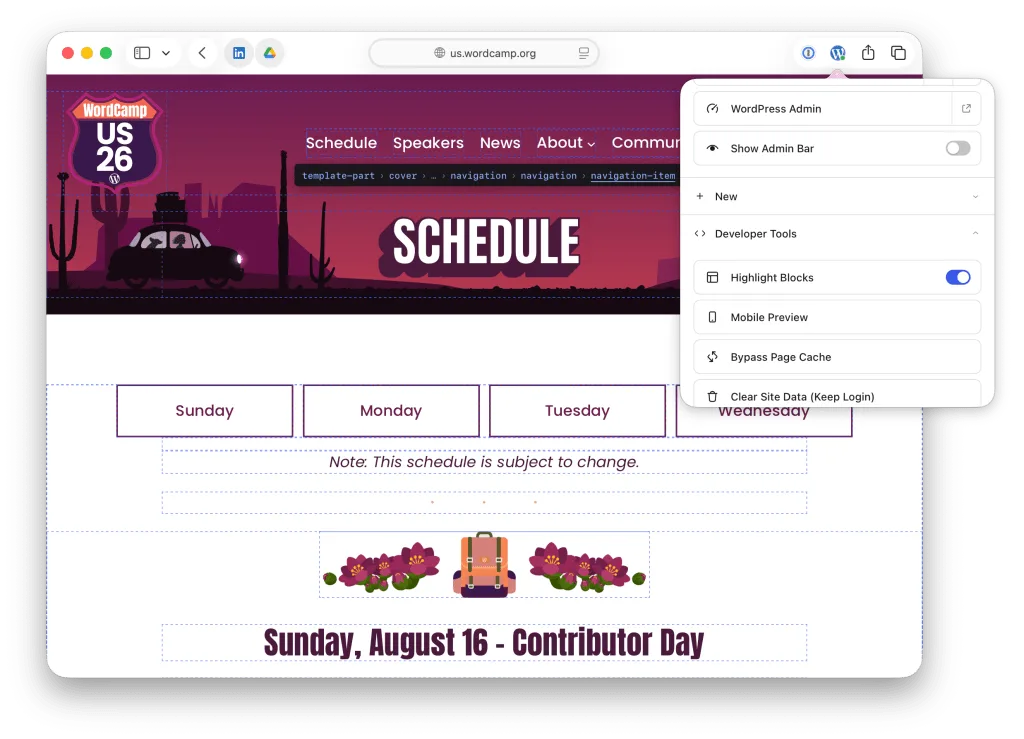
Several tasks are more practical from the browser than from a WordPress plugin. The extension can overlay block boundaries on a rendered page, open a phone-sized preview window, reload the page with cache busting, and clear the current site’s cookies and local storage.
A block boundary is the visible edge of a rendered block, which helps you identify the block structure behind a layout. Because these controls run through the extension, you don’t need to install a plugin or other software on each site. The same set of tools is available whenever you visit a WordPress site.
Keep site data in the browser
The extension evaluates the page in your browser to determine what it is viewing. When the page itself doesn’t provide enough information, it requests the needed details from that site’s WordPress installation.
Your preferences and the launcher’s signed-in site list remain in the browser. The extension doesn’t send them elsewhere, and it has no tracking or analytics.
Install it for your next logged-in review
Install the WordPress Browser Extension from the store that matches your browser, then open its toolbar icon on a WordPress site where you are signed in. Start by hiding the admin bar and using the page-specific editor shortcut; turn on block boundaries, the phone preview, cache-busting reloads, or site-data clearing when your review needs them.
References / Sources
James O'Brien
Backend developer, Node.js and Go specialist. API design and microservices architecture are my main focus. I love diving deep into technical details.
All posts