
Cleaner WP_DEBUG Screens in WordPress: Acorn, Ignition, and Practical Options
If you build WordPress sites for a living, you already know the rule: run with WP_DEBUG on locally. Notices and warnings are often the first signal that something is off—deprecated hooks, undefined variables, edge cases in templates, or a plugin doing something questionable.
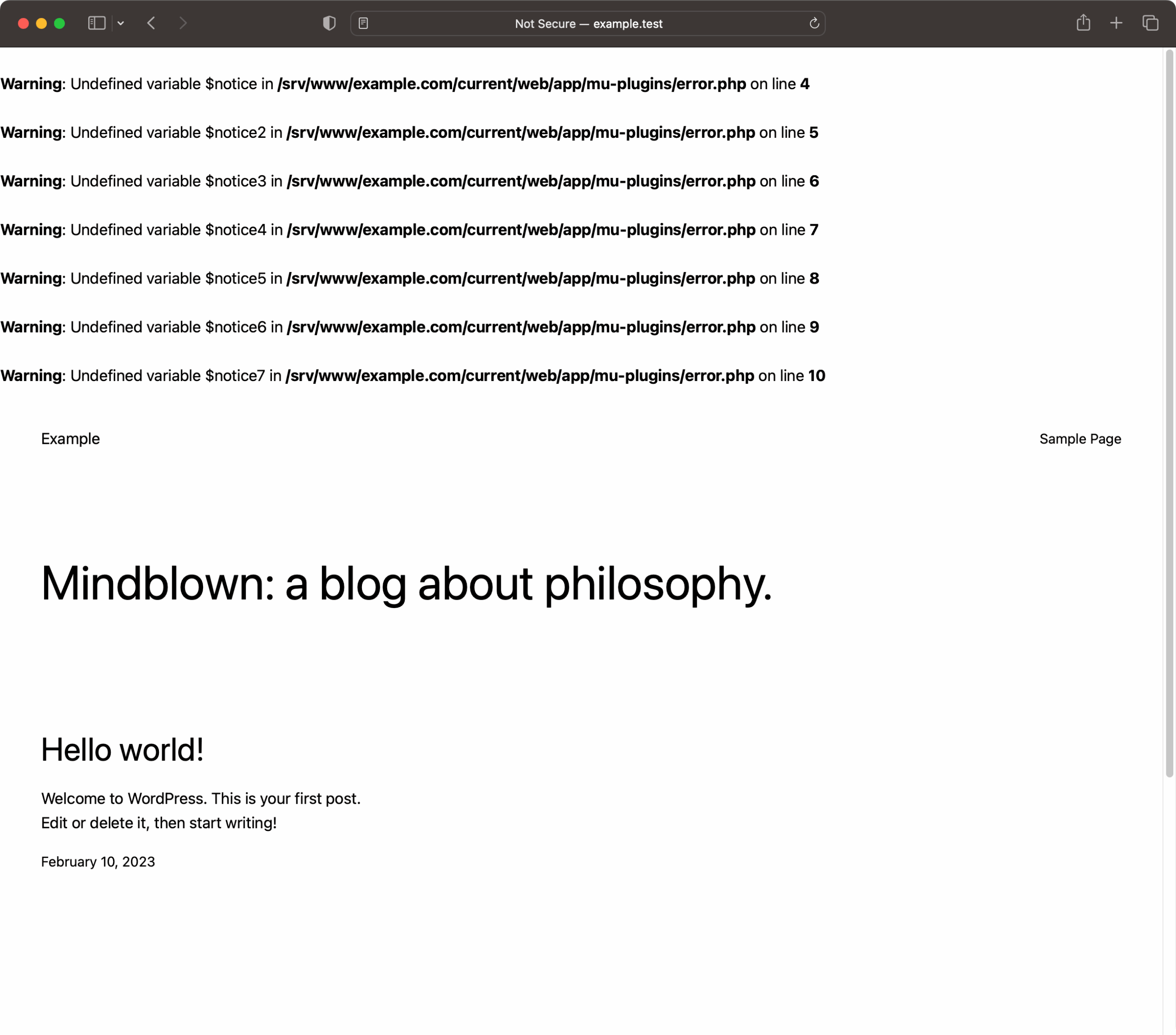
The problem is that WordPress’s default debug experience isn’t particularly developer-friendly. It will happily dump warnings and fatal errors directly into the page output, which is better than silence, but not great when you’re trying to trace a failure quickly.
What WordPress gives you out of the box: WP_DEBUG (and friends)
WP_DEBUG is the core switch that enables WordPress debug mode. It’s typically paired with other flags such as WP_DEBUG_DISPLAY (whether errors are printed to the screen). In a local environment, the common goal is simple: show errors early, fix them fast.
If you’re using Bedrock (Roots’ modern WordPress boilerplate built around Composer), development environments already ship with WP_DEBUG enabled by default—so you get the safety net without having to remember to flip it on.
Why default WP_DEBUG output slows you down
With vanilla WordPress, debug output usually shows up as raw PHP warnings/notices or a fatal error message embedded in the rendered HTML. It works, but it’s noisy and easy to miss—especially in theme development where markup and template logic are already intertwined.
How Acorn improves WordPress debugging
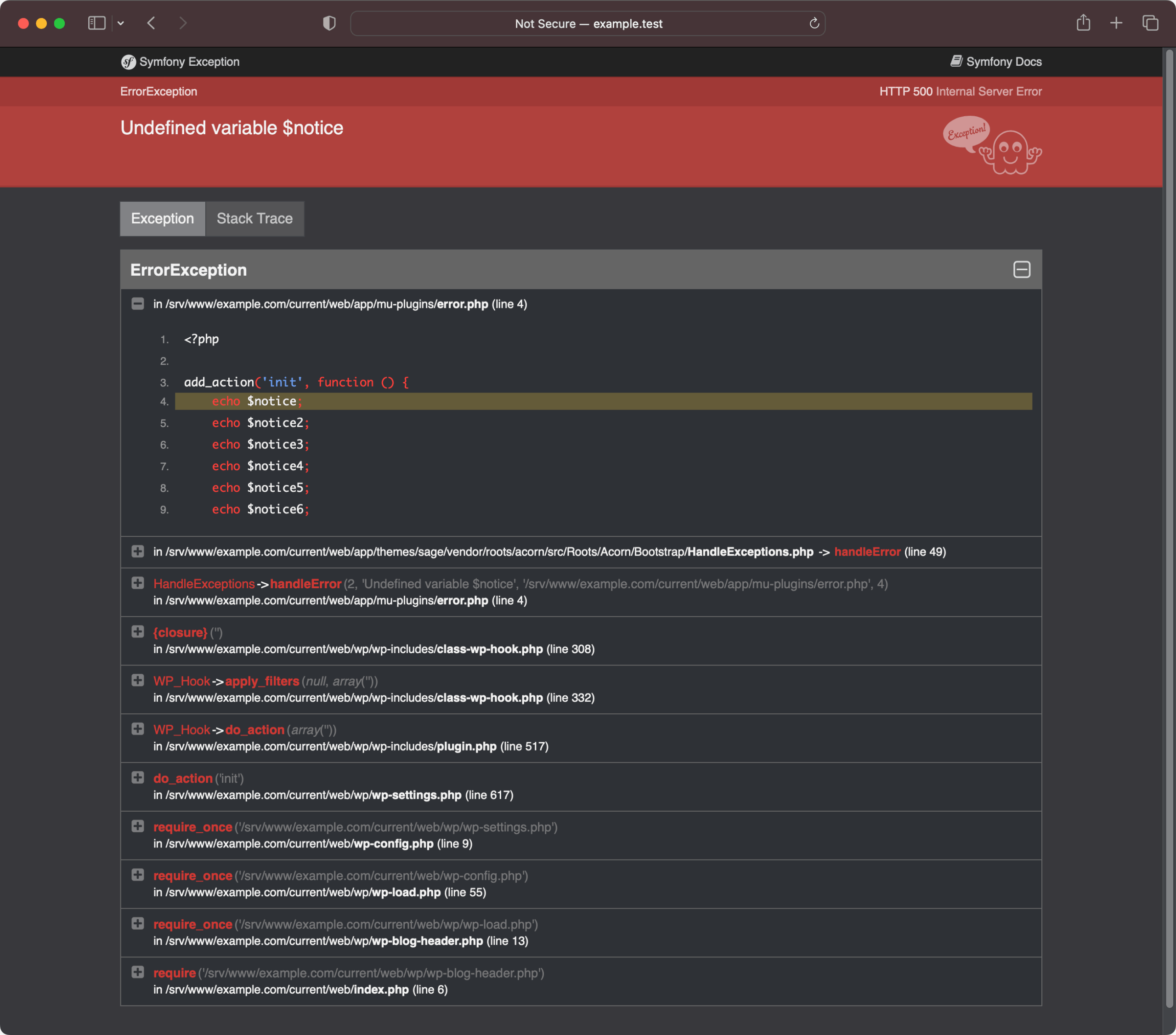
Acorn is Roots’ Laravel-flavored framework layer for WordPress. Practically speaking, it brings modern PHP tooling and conventions into WordPress projects (service container, configuration patterns, helpers, etc.). One immediate quality-of-life win is improved error handling when WP_DEBUG && WP_DEBUG_DISPLAY are enabled.
Acorn’s default: Symfony exception handling
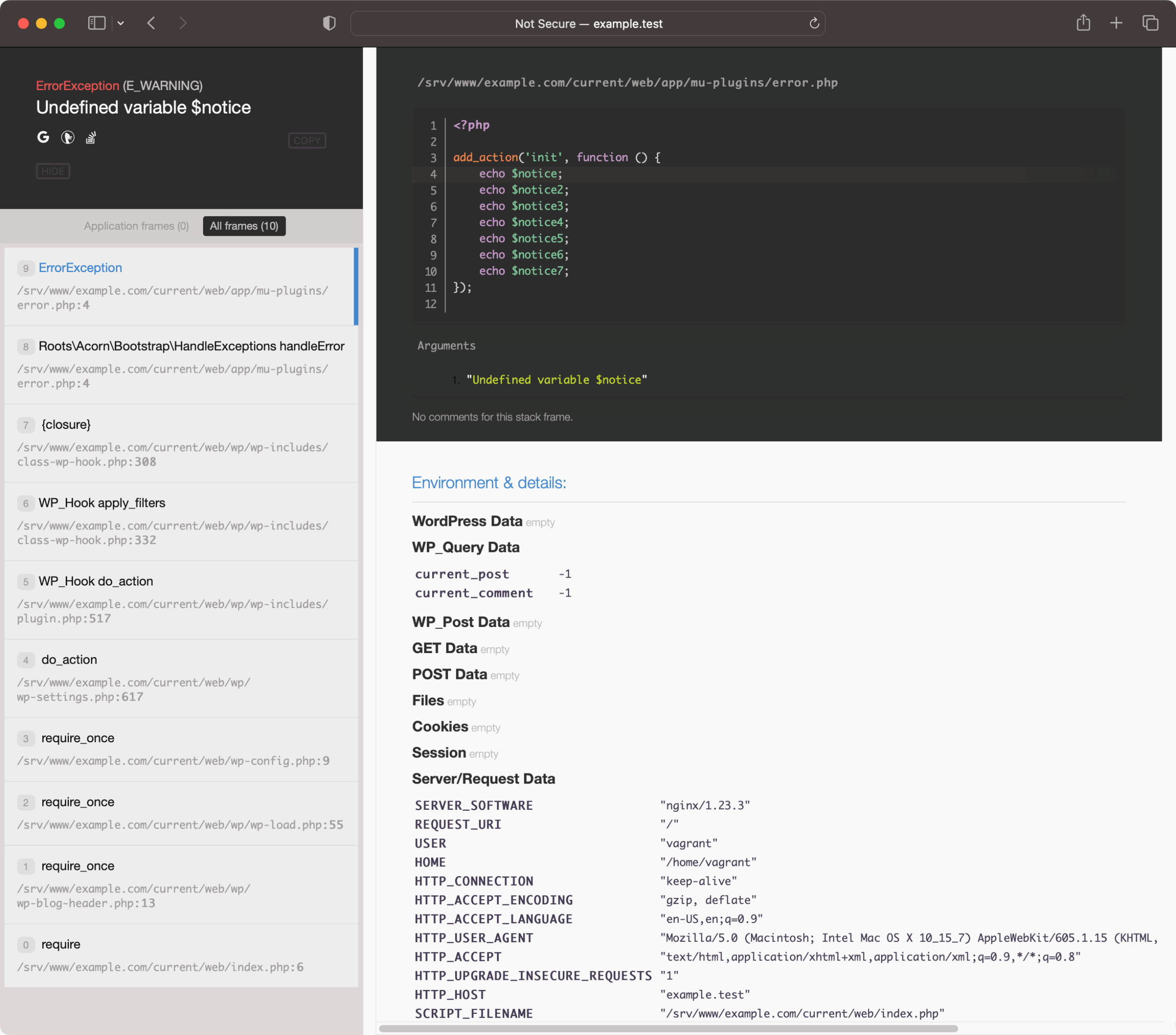
Out of the box, Acorn uses Symfony’s exception handler in debug mode, which presents exceptions in a much more readable way than WordPress’s default screen output. You get a structured view that’s easier to scan when you’re diagnosing a fatal error.
Best experience: Ignition (Laravel-style error pages) via Acorn v3
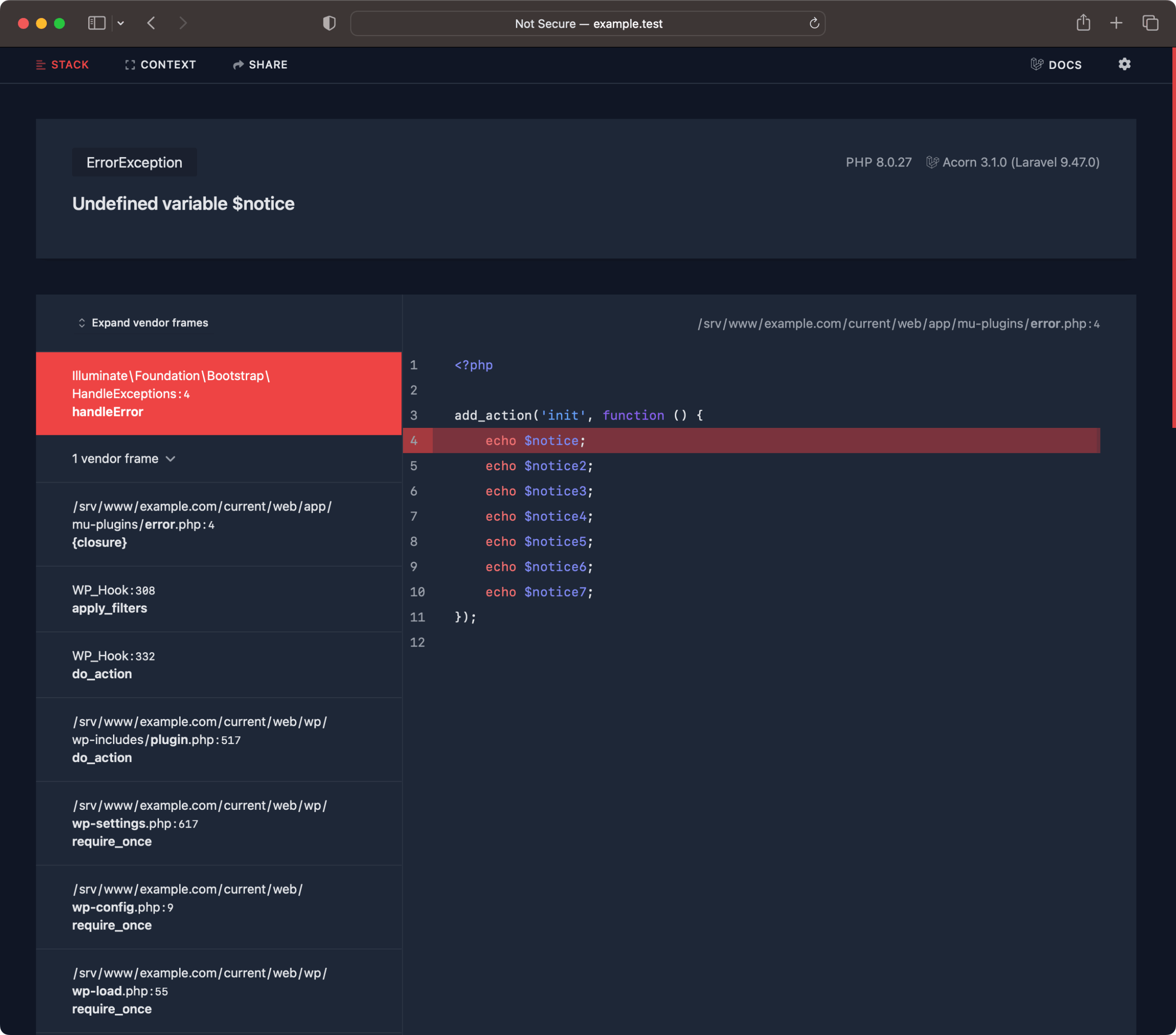
If you’ve worked with Laravel recently, you’ve probably seen Ignition—the polished error page that became Laravel’s default starting with Laravel v9. With Acorn v3 adding support for Laravel-style routing, Ignition becomes a practical option in WordPress projects running Acorn as well.
In day-to-day debugging, Ignition’s formatting makes a real difference: clearer stack traces, better context, and a workflow that feels familiar if you bounce between Laravel and WordPress.
Install Ignition in an Acorn-powered WordPress project
Ignition is installed as a development dependency with Composer. Run this from the directory where Acorn is installed:
composer require spatie/laravel-ignition --devKeep it dev-only
Ignition is intended for local development (or otherwise controlled environments). Install it with --dev and avoid exposing detailed error pages on production.
Acorn v2 note: Whoops as a nicer fallback
Before Acorn v3, a common upgrade to the developer experience was Whoops (the pretty error handler maintained at filp/whoops). If you’re still on Acorn v2, it’s worth upgrading to v3 for the modern routing/Ignition path, but Whoops can still deliver a more readable error page than the baseline handler.
Not using Acorn? Two solid WordPress debugging plugins
Acorn isn’t a requirement for better debugging, but it does make the baseline experience significantly nicer if your project is already leaning modern (Composer, Bedrock, cleaner config). If you’re on a more traditional setup, there are still tools that improve visibility into what WordPress is doing.
- Query Monitor — a staple for local WordPress development, great for inspecting queries, hooks, HTTP calls, and more.
- Debug Bar — adds a debug panel to help surface useful runtime info during development.
A practical local debugging setup (what to aim for)
For most professional WordPress builds, a productive baseline looks like this:
- Enable
WP_DEBUGin local development so you catch notices early. - Use a clearer exception page (Acorn’s default Symfony handler, or Ignition via Acorn v3).
- Add Query Monitor when you need to inspect queries, hooks, and runtime behavior beyond PHP exceptions.
Wrap-up
WordPress debugging doesn’t have to mean squinting at raw warnings embedded in HTML. With Acorn, you get a modern exception handling experience when WP_DEBUG is on—and with Ignition installed, WordPress errors can look and feel much closer to the Laravel workflow many PHP developers already prefer.
Emma Richardson
UI/UX designer and frontend developer. React and the modern JavaScript ecosystem are my expertise. Passionate about user experience and accessibility.
All posts