
WP Media Cleanup: A Practical Way to Remove Unused WordPress Image Variations (Safely)
If you’ve ever looked at a WordPress upload directory and wondered why it’s so massive, you’re not alone. The surprising part is that the storage problem often isn’t your original images-it’s the image variations WordPress generates automatically every time you upload a file.
By default, WordPress creates multiple sizes per image (commonly 5–10 variants depending on your settings, theme, and plugins). Think thumbnail, medium, large, plus custom sizes registered by themes and page builders. On a site with 5,000 uploads, that can turn into 20,000+ image files, many of which never get referenced anywhere on the site.
That unused media doesn’t just sit there harmlessly: it inflates backup archives, slows down migrations, and nudges you into higher hosting tiers-month after month.
A new tool called WP Media Cleanup by Duplicator aims to fix exactly this: identify unused image variations across your site and remove them with a workflow that’s designed to be reversible.
Why unused image variations are a real operational problem (not just “cleanup”)
WordPress media bloat becomes painful the moment you do routine operational work:
- Backups get bigger: Every generated variation gets included, even if it’s never used on the front-end.
- Migrations slow down: Larger payloads mean longer exports/imports and longer transfer times.
- Storage costs creep up: Hosts often price storage in tiers. Unused files can push you into the next tier without you noticing.
- Manual auditing doesn’t scale: Filenames like
image-150x150.jpg,image-300x300.jpg, andimage-768x432.jpgdon’t tell you whether they’re actually used anywhere.
The core challenge is visibility: most site owners (and plenty of dev teams) simply can’t answer, with confidence, which generated images are safe to delete.
What WP Media Cleanup does (and what it intentionally avoids)
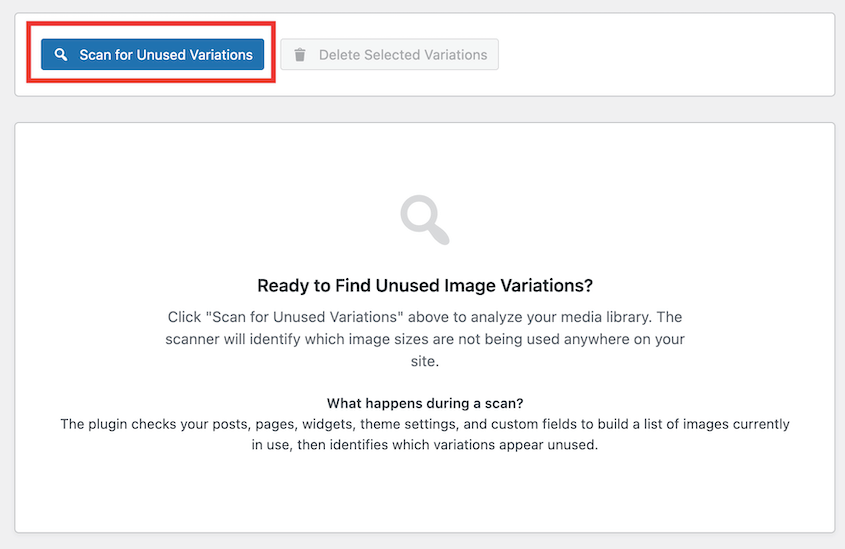
WP Media Cleanup is built around a straightforward idea: scan your WordPress site, map where images are referenced, and cross-check that against what exists in the Media Library and on disk-so you can see which generated files are unused.
Crucially, the tool targets only the generated size variations (like thumbnail-150x150.jpg or medium-300x300.jpg). The original “source” image files remain untouched, which is an important safety line-especially for client work.
Feature: one-click scanning that builds a usage map
According to the announcement, the plugin scans “every corner” of a WordPress site to understand usage-not just published posts and pages, but also places where images are commonly referenced indirectly.
Specifically, it scans:
- Published content
- Widgets
- Custom fields
- Theme settings
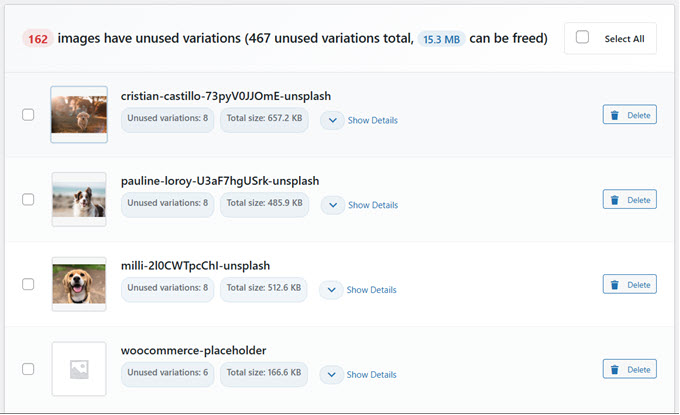
After the scan, it produces a report that highlights which image variations appear to be unused, so you can make deletion decisions based on a concrete inventory rather than guesswork.
Feature: bulk delete or cautious review-your call
Once the report is generated, WP Media Cleanup lets you handle deletion in two main ways:
- Bulk cleanup when you want immediate space savings
- File-by-file review when you’re being conservative (common for high-traffic sites and client environments)
This matters for agencies and freelancers because cleanup isn’t just a technical task-it’s a risk-management task. Being able to verify and selectively remove files helps you keep control over what changes on a client site.
Safety net: delete now, restore later (30-day retention by default)
The biggest psychological barrier to media cleanup is the fear of breaking layouts or losing assets permanently. WP Media Cleanup addresses this by treating deletion as reversible.
When you delete unused image variations, they’re moved into a protected temporary location for 30 days by default. You can also change the retention duration in the plugin’s settings.
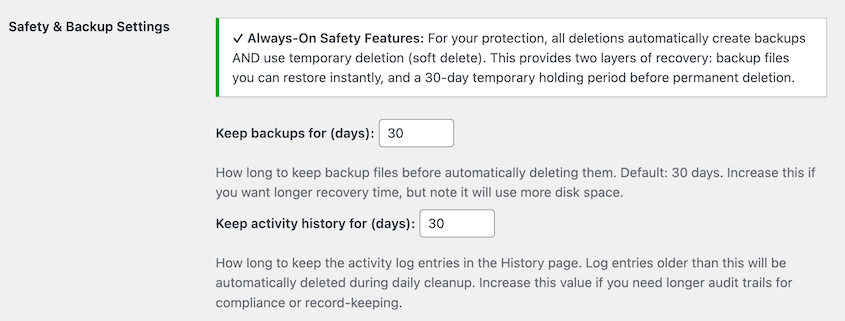
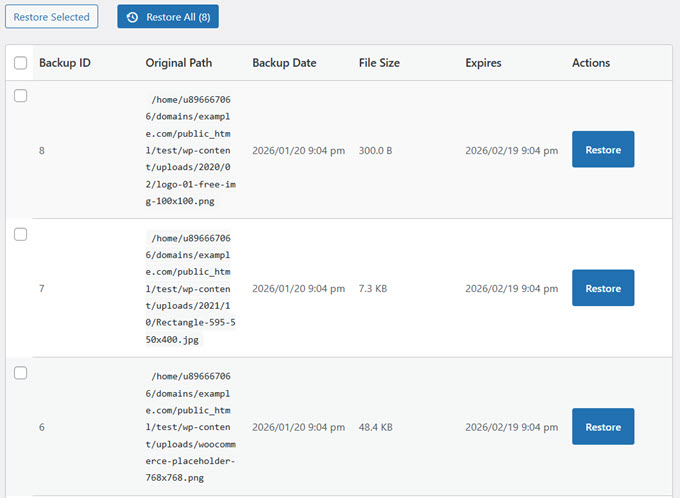
If you later realize you need something back-whether it’s a single file or everything from a cleanup run-you can restore in seconds.
WP-CLI support for agencies and maintenance workflows
If you manage multiple WordPress sites, clicking around dashboards doesn’t scale. WP Media Cleanup includes support for WP-CLI (WordPress Command Line Interface), which lets you run scans, deletes, restores, and checks from the terminal-ideal for automation and recurring maintenance.
The announcement shares a typical command-line workflow:
# Find and review unused variations
wp media-cleanup find_unused --format=table

# Delete them with confirmation
wp media-cleanup delete_unused --yes

# Check statistics
wp media-cleanup stats
For agencies, this opens the door to scripting cleanups across a portfolio, integrating it into existing maintenance routines, and reclaiming storage without manual intervention.
Built by the Duplicator team (and why that’s relevant)
WP Media Cleanup is positioned as a product from the same team behind Duplicator, a backup and migration plugin used by over 1,500,000 professionals. The rationale is simple: if you work on backups and migrations at scale, you’ll repeatedly see how unused image variations inflate archives and slow transfers-so a cleanup tool becomes a natural companion.
Getting started checklist (the exact flow)
The announced onboarding flow is intentionally short and operational:
- ✅ Install WP Media Cleanup on your WordPress site
- ✅ Click “Scan” to analyze your media library
- ✅ Review the list of unused image variations
- ✅ Delete the unused media in bulk or individually
- ✅ Restore anything if needed from the 30-day backup
Availability and pricing (as announced)
Per the announcement, WP Media Cleanup is available now in two ways:
- Included as part of the Duplicator Elite bundle
- Available as a standalone purchase starting at $29/year for a single site
The promise is that setup takes minutes, and the scan will immediately show how much space is recoverable in your Media Library.
Why this matters for real-world WordPress maintenance
Media cleanup is one of those tasks that’s easy to postpone because it’s tedious and risky when done manually. But the storage bloat from unused image variations hits multiple parts of your workflow: backups, migrations, and monthly hosting overhead.
A tool that can (1) reliably identify unused generated files, (2) preserve originals, (3) provide a restore window, and (4) support WP-CLI automation, fits neatly into the kind of maintenance checklist most WordPress teams wish they had time to run consistently.
Emma Richardson
UI/UX designer and frontend developer. React and the modern JavaScript ecosystem are my expertise. Passionate about user experience and accessibility.
All posts